Malwarebytes for Students - Combined version
Malwarebytes is a virus, malware, and spyware scanning program. CUIT has purchased Malwarebytes Endpoint Security Premium licenses that students can download for free.
Active Students
If you are an active student (of Columbia University or CUIMC), CUIT encourages you to download and install Malwarebytes to protect your computer for free.
Each student is entitled to one (1) license for an endpoint of your choice, such as your computer, server or Android-based device. Your license needs to be validated every 12 months to confirm you are still an active student of the University.
Students also receive the benefit of Malwarebytes’ expert support for technical issues.
NOTICE: Faculty and Staff
This installer was created for students' personal workstations and laptops. It should not be installed on servers or Columbia-owned computers. If you would like to have Malwarebytes installed on a University-managed computer (managed by a department outside of CUIT), please have your IT administrator request a Malwarebytes Site (available beginning January 15, 2020).
If you do not have a departmental IT administrator and are the administrator of your own Columbia-owned computer, please contact CUIT Cybersecurity at [email protected].
CUIT-managed-computers are automatically configured with Malwarebytes. The easiest way to check if you have a CUIT-managed computer is to look on your computer and see if you have the CUIT software download center installed:
- For Windows: You have the CUIT Software Center icon on your desktop.
- For Macs: You have the Self Service center in your applications folder.
Register for your Malwarebytes account
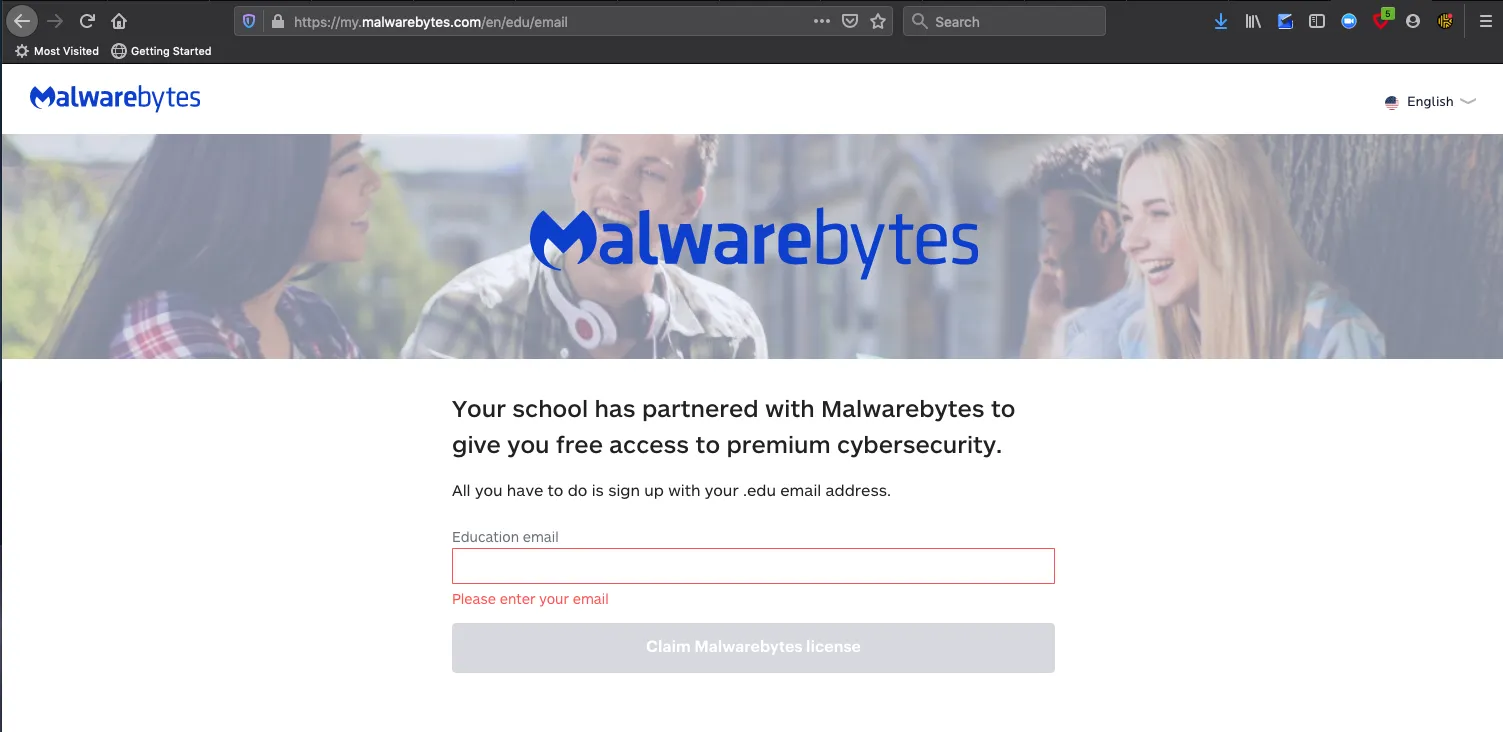
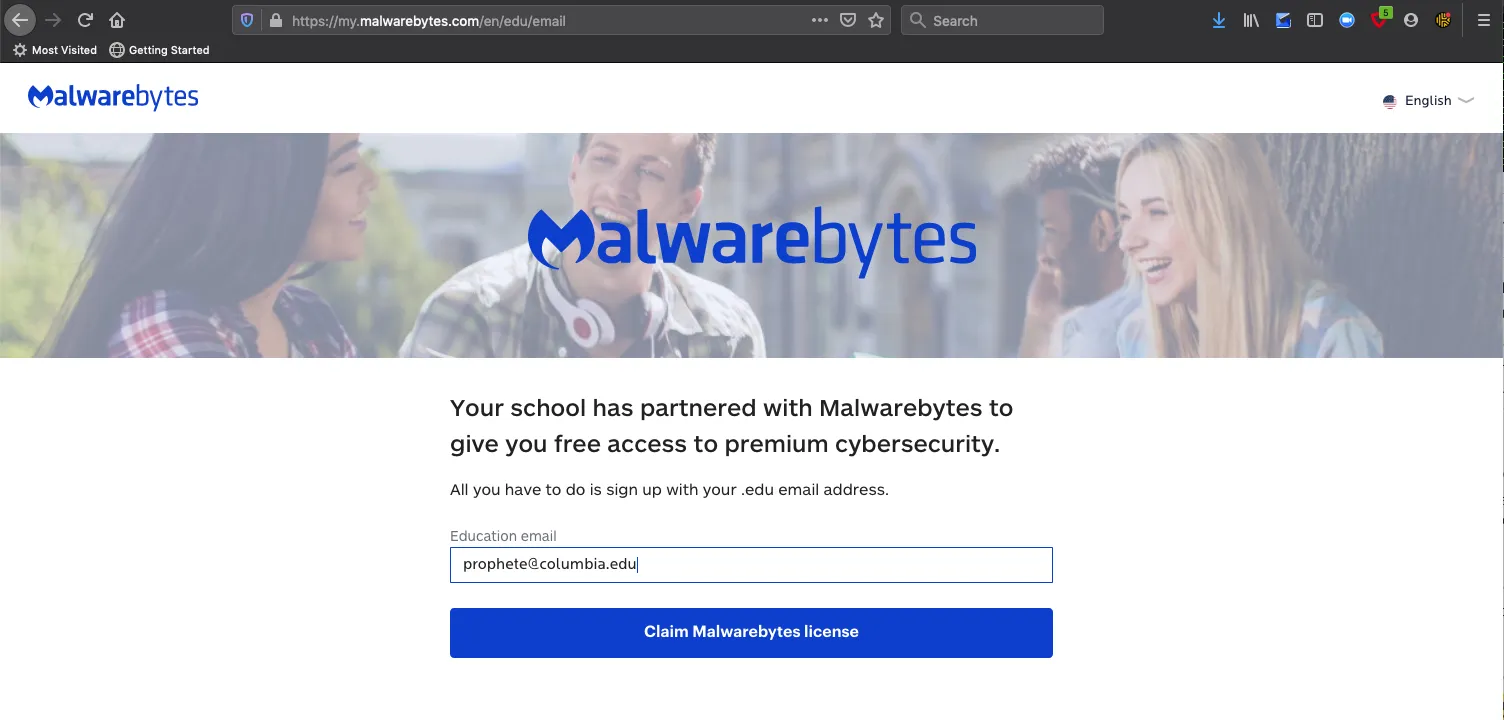
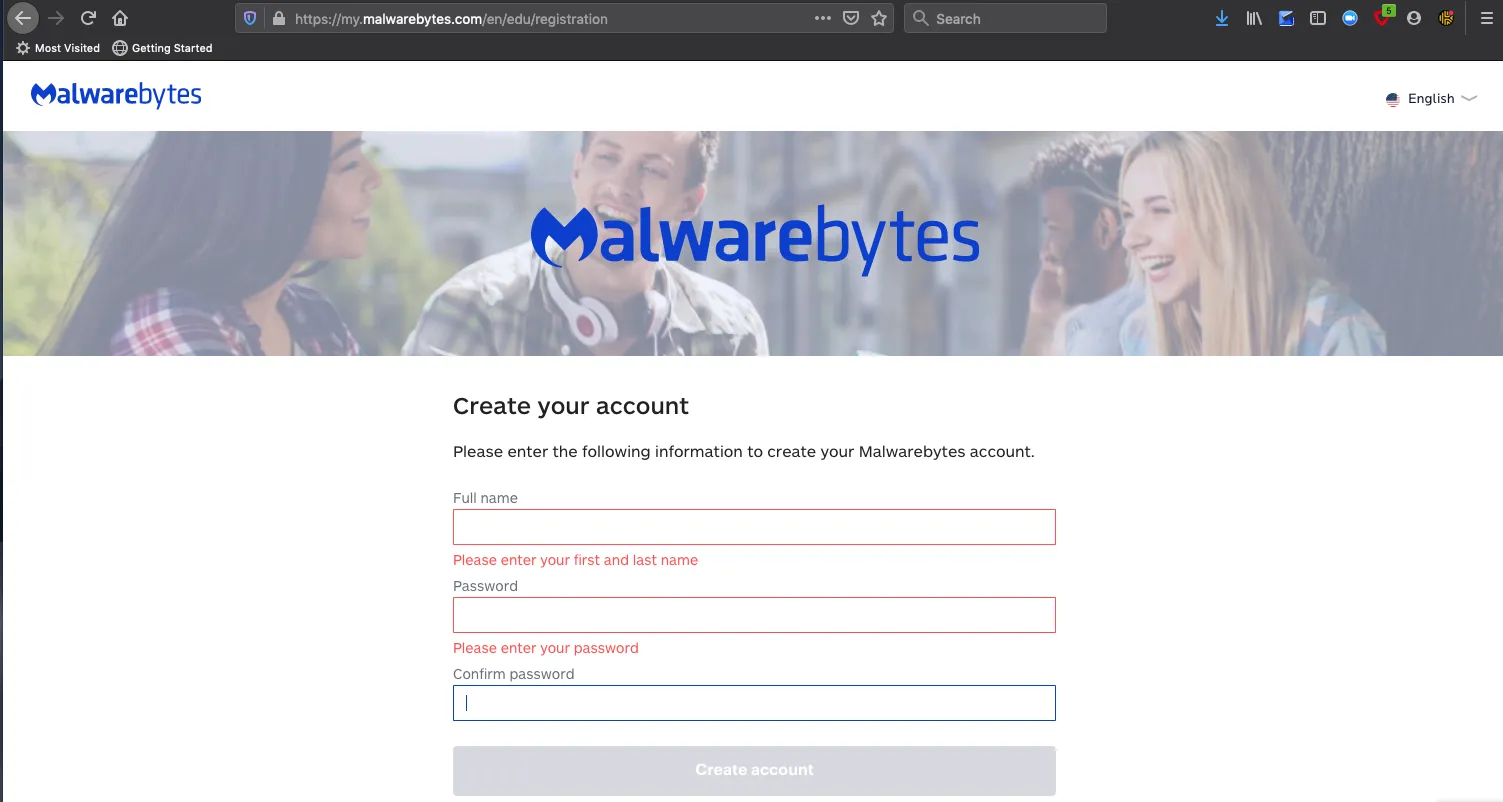
Create your login credentials for the Malwarebytes site.
Please do not use your Columbia UNI password.
Then, click on the Create account button.
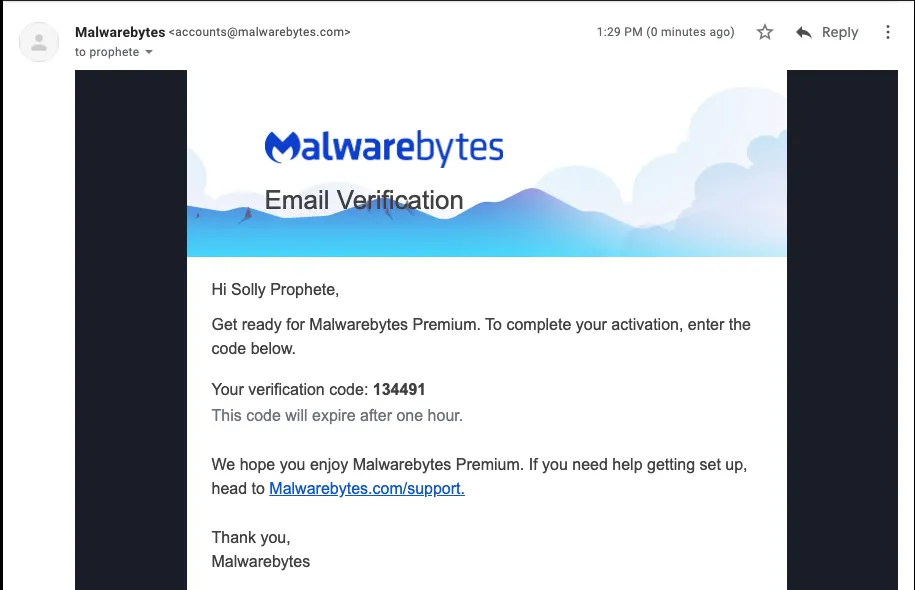
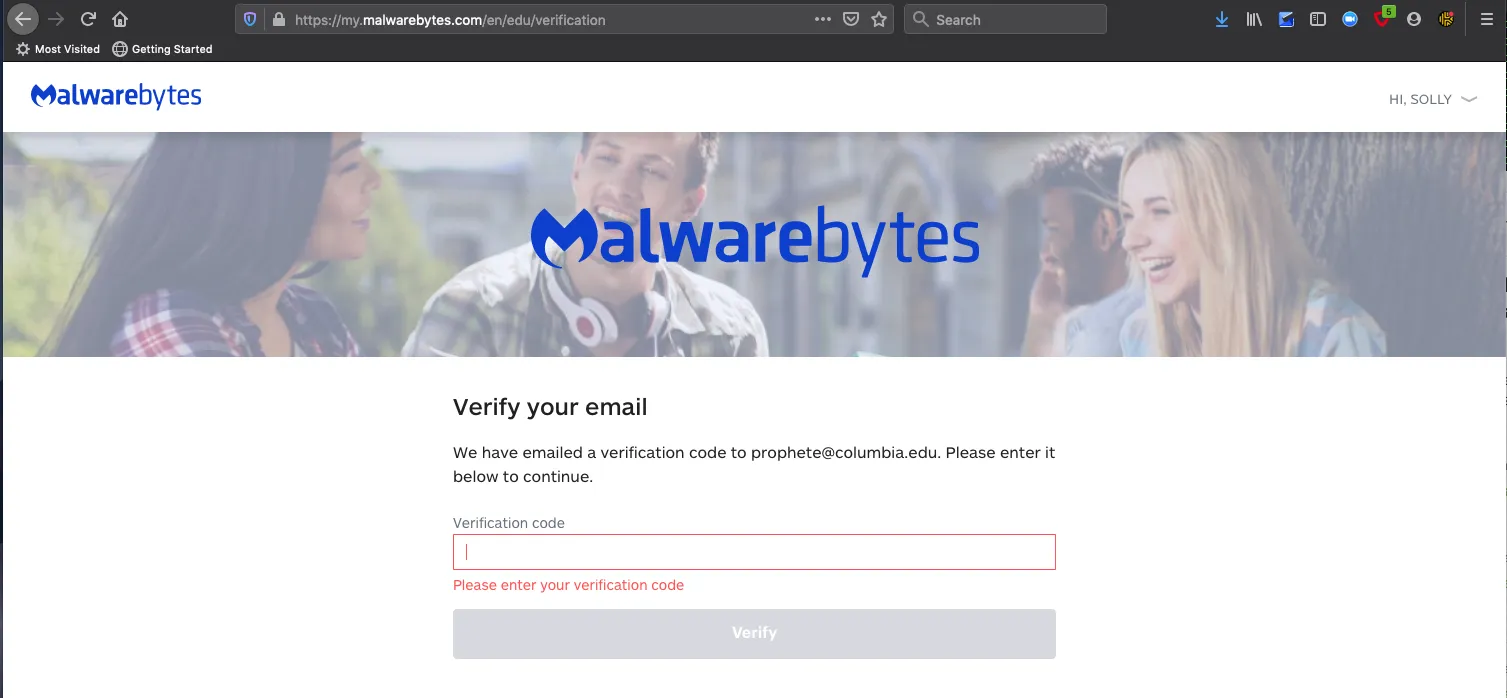
You will receive a six-digit verification code in your Columbia email inbox. Eenter the verification code on the Malwarebytes account activation site and click on the Verify button.
Note: This code will expire after one hour.
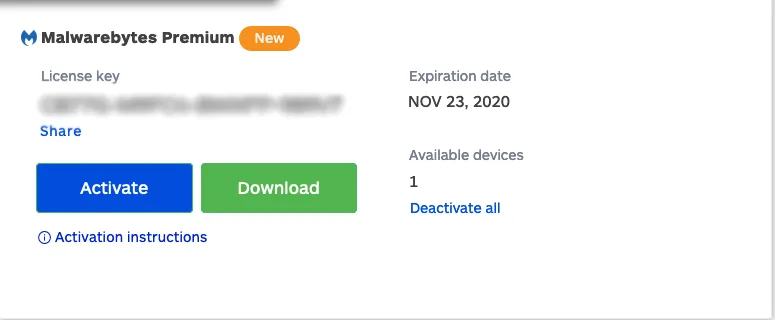
Malwarebytes will offer you the options to Download or Activate. First, you must download and install. Later, you will activate so you can have access to Malwarebytes Premium features.
Click on the Download button to download the Malwarebytes software, then follow the directions below to complete the installation:
(If you already have Malwarebytes and would like to update to the latest version, then visit https://my.malwarebytes.com/en/edu/email.)
Save the installer to your hard drive, and make a note of the folder in which you saved it.
For most users, downloaded files are saved to the Downloads folder of your device.
Macs
Double click on the package (.pkg) file and follow the prompts to complete the installation. Malwarebytes has a detailed Mac installation guide if you have any questions about the steps.
Windows
Double click on the executable (.exe) file and follow the prompts to complete the installation. Malwarebytes has a detailed Windows installation guide if you have any questions about the steps.
Guides/FAQs
For instructions on how to uninstall Malwarebytes for Windows, please use the Malwarebytes' Windows uninstallation guide.
For instructions on how to uninstall Malwarebytes for Mac, please use Malwarebytes' Mac uninstallation guide.
First, log into your Malwarebytes account. Please reference Malwarebytes' subcription guide to learn all that you can do from your account page.
First, log into your Malwarebytes account. Then, review Malwarebytes' license key guide for step-by-step instructions.
Malwarebytes offers a detailed transfer/deactivation guide that will walk you through this process.